If you’re like most people, you probably think you know Google Workspace inside out. Gmail, Docs, Drive, Sheets… check, check, and check. But here’s the truth: the average user only scratches the surface, using maybe 20–30% of what Google Workspace can actually do.
That means there’s a whole suite of hidden productivity features that can seriously streamline your work, save you hours every week, and make you feel like a Google Workspace power user—even if your coworkers are still struggling with basic tasks.
Let’s dive into some of these lesser-known tools and tips that can transform how you work, all while keeping things simple and approachable.
Table of Contents
Why Google Workspace Has More Productivity Power Than You Think
Google Workspace isn’t just a set of apps—it’s a fully integrated productivity ecosystem. But for many users, it’s easy to get stuck in the routine of sending emails, editing documents, and storing files. That’s why most people only tap into a fraction of its potential.
The reason is simple: Google Workspace is packed with hidden tools and features that don’t scream for your attention. Think of it like an iceberg—the part you see is just the tip, while the bulk of its power lies beneath the surface. These hidden tools are designed to help you cut workflow time, stay organized, and even collaborate more effectively with your team.
When you discover features like Smart Canvas, advanced Drive search operators, or Gmail’s integration with Tasks, the impact on your productivity is almost immediate. Suddenly, repetitive tasks that used to eat up hours are reduced to minutes. And the best part? You don’t need to be a tech wizard to use them. Once you start exploring these features, you’ll wonder how you ever managed without them.
The Most Overlooked Google Workspace Tools That Save Hours Weekly
Smart Canvas: The Future of Connected Workflows
If you’ve never used Smart Canvas, you’re missing out on one of Google Workspace’s most powerful productivity enhancers. Introduced as a way to connect different Google apps more seamlessly, Smart Canvas turns your documents, spreadsheets, and slides into interactive hubs where collaboration happens in real time.
One of its standout features is smart chips. These little gems allow you to insert interactive elements directly into your Docs. You can link to a colleague, a file, or even a calendar event. This means you don’t have to stop writing to search for a file or ping someone for clarification—the info is right there in your document.
Then there’s building blocks, which let you insert reusable content templates, tables, and checklists. Imagine creating a project plan once and reusing it across multiple teams without starting from scratch every time. Smart Canvas also supports meeting notes and task assignments directly within Docs. That means action items can be assigned and tracked without leaving your workflow—no more juggling separate apps or emails.
For teams, Smart Canvas isn’t just convenient—it’s transformative. It reduces friction, improves visibility, and keeps everyone on the same page, literally.
Google Tasks + Gmail Integration: A Hidden Power Duo
Most people treat Gmail as a simple email tool, but when you combine it with Google Tasks, it becomes a productivity powerhouse. With this integration, you can turn any email into a task with just a few clicks. That means no more scribbled notes or forgotten follow-ups. Every task lives in one place, synced across all your devices.
Here’s how it works: When you receive an email that requires action, click the “Add to Tasks” button. The email is automatically linked, so you can open it directly from your task list when it’s time to work on it. You can set due dates, reminders, and even subtasks. This turns Gmail into a centralized hub for both communication and action management.
The real magic happens when you start using Tasks across devices. Whether you’re on your phone, tablet, or desktop, your task list stays updated in real time. This makes it easy to check off items while commuting, waiting for a meeting, or even working remotely. It’s a simple setup, but once you get in the habit, it can save you hours every week.
Drive’s Advanced Search Operators You Never Use
Google Drive is more than just a cloud storage solution. Its real strength lies in its advanced search capabilities, which many users never explore. If you’ve ever spent ages scrolling through folders looking for a file, this feature alone can change your life.
Drive allows you to use filters, shortcuts, and boolean commands to locate files instantly. For example, you can search by file type (type:pdf), owner (owner:me), or date modified (before:2025-12-01). Combine these operators for even more precise results, like finding a PDF shared with you by a colleague last month.
Shortcuts make organizing files easier than ever. Instead of duplicating documents, create shortcuts to reference them across multiple folders. And don’t forget about the search bar’s hidden potential: typing natural language queries like “Files I shared last week” can pull up exactly what you need, thanks to Google’s AI-powered search algorithms.
Using these advanced operators not only saves time but also reduces stress. No more frantic searching before a meeting or project deadline. With just a few keystrokes, you can find any file in seconds.
Hidden Productivity Features Inside Google Docs, Sheets, and Slides
Google Workspace isn’t just a collection of apps—it’s a productivity powerhouse waiting to be fully discovered. While most users stick to the basics, there are dozens of hidden features across Docs, Sheets, and Slides that can save hours every week and make your work feel smoother, faster, and more efficient.
Let’s explore some of the most overlooked tools that can transform your daily workflow.
Google Docs: Voice Typing, Pageless Mode, and Smart Summary
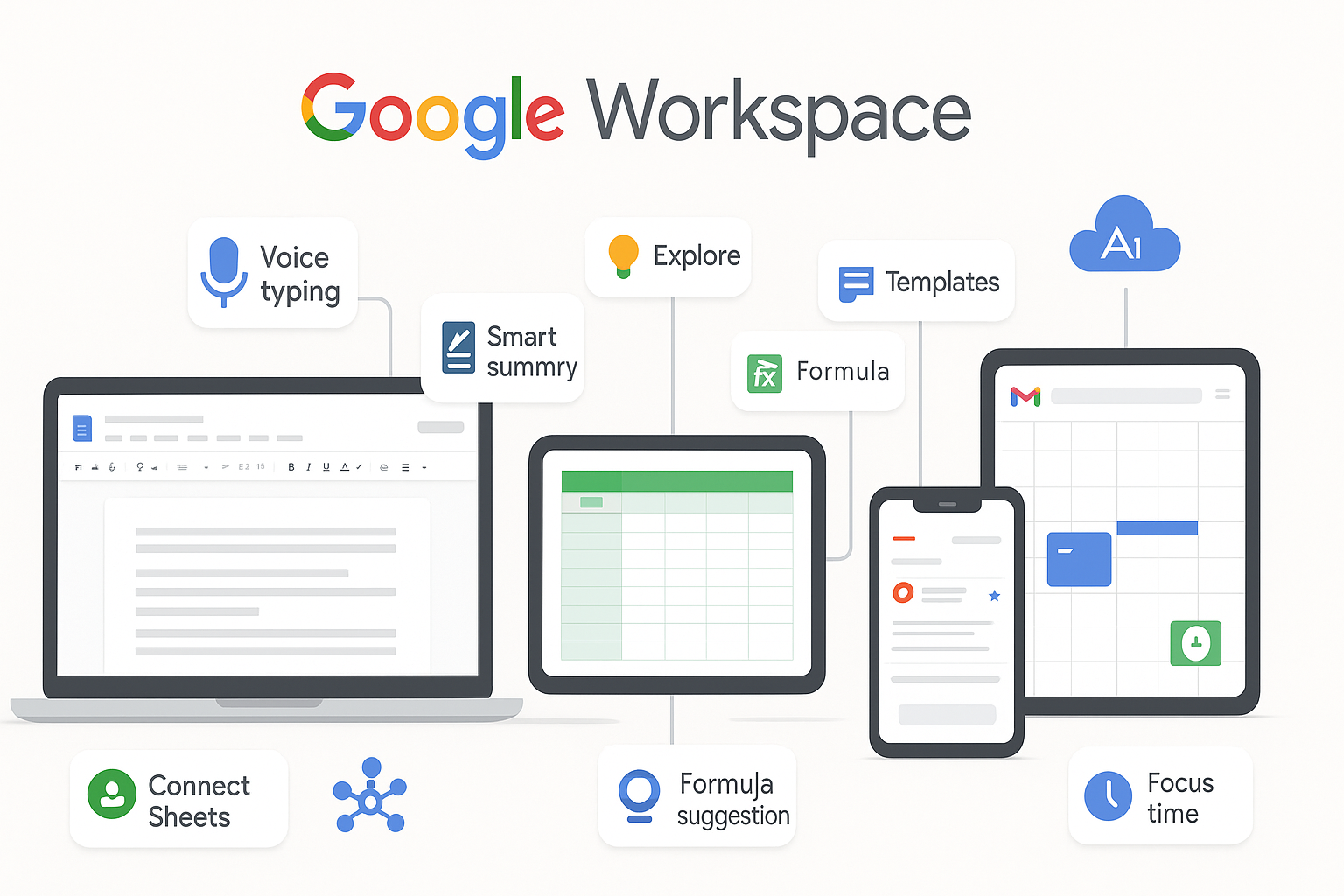
Google Docs has evolved far beyond a simple word processor. One feature many users overlook is Voice Typing. Instead of typing line after line, you can dictate your thoughts directly into Docs. This is perfect for brainstorming, note-taking, or drafting reports—especially if your fingers need a break. Accuracy has improved dramatically, and even editing dictated text is quick and easy.
Then there’s Pageless Mode, a feature designed for collaborative editing. It removes the rigid page boundaries, giving you an infinite canvas. This is ideal for brainstorming sessions, long research documents, or collaborative reports where formatting shouldn’t slow you down.
Smart Summary is another game-changer. Using AI, Google Docs can generate summaries of long documents, helping you quickly review content, identify key points, or even prepare reports. Together, these tools speed up writing, editing, and reviewing documents without adding extra steps.
Google Sheets: Connected Sheets, Explore, and Formula Suggestions
Spreadsheets are often a productivity bottleneck, but Google Sheets hides some serious power under the surface. Connected Sheets lets you link live datasets from BigQuery directly into your spreadsheets, eliminating manual imports or copy-pasting. This is ideal for teams that rely on real-time data for reporting or analysis.
The Explore feature is like having a data analyst in your pocket. Just click the Explore button, and Google Sheets suggests charts, tables, and insights based on your data. You don’t need advanced formulas to visualize trends or uncover insights—it does the heavy lifting for you.
Finally, Formula Suggestions save time and reduce errors. As you type a formula, Sheets predicts the rest, helping both beginners and advanced users create complex calculations quickly. This is perfect for anyone who works with recurring reports or large datasets.
Google Slides: Auto-Layout, Quick Design, and Speaker Coach
Presentations don’t have to be tedious to create. Auto-Layout automatically adjusts your slide elements for perfect alignment, saving you the painstaking effort of manually resizing or moving text boxes and images.
Quick Design takes things a step further by generating professional slide layouts instantly. Input your content, and Google Slides suggests visually appealing designs. This is especially handy when you’re pressed for time or need a polished look without hiring a designer.
Speaker Coach is an underrated AI feature that helps presenters practice. It gives real-time feedback on pacing, filler words, and clarity, so you can rehearse like a pro before your big presentation.
Gmail and Calendar Productivity Hacks Most People Don’t Know Exist
Gmail: Templates, Schedule Send, and Nudges
Gmail is more than just an inbox—it’s a productivity hub. Templates allow you to create and reuse standard emails, which is perfect for repetitive messages like client follow-ups or internal updates.
Schedule Send is another hidden gem. Instead of sending emails immediately, you can choose the perfect time for delivery. This is great for reaching global teams or ensuring emails land at optimal hours.
Nudges are subtle reminders that bring important messages back to the top of your inbox. If you’ve ignored an email or need to follow up, Gmail nudges you at the right time, ensuring nothing slips through the cracks.
Google Calendar: Time Blocking, Appointment Schedules, and Focus Time
Google Calendar is more than a place to jot down meetings. Time Blocking lets you schedule dedicated work sessions, ensuring you focus on important tasks rather than reactive email or meetings.
Appointment Schedules make it easy for colleagues or clients to book time with you without endless back-and-forth emails. And Focus Time automatically silences notifications, creating distraction-free blocks for deep work. Together, these tools help you take control of your schedule and boost productivity.
Collaboration Features That Make Google Workspace a Team Productivity Machine
Real-Time Collaboration Tips
One of Google Workspace’s strongest advantages is collaboration. Version history allows teams to track every change, making it easy to revert edits or review progress. Comment assignments ensure feedback is actionable and clearly assigned, reducing confusion in group projects. And Suggesting Mode lets collaborators propose edits without overwriting the original content.
Using these features effectively keeps everyone aligned, prevents duplicated work, and improves accountability across teams.
Shared Drives for Organized Team Workflows
Shared Drives go beyond individual folders. They allow teams to store files in a centralized, structured way. Permissions can be customized for view, edit, or manage access, ensuring sensitive information is protected while still accessible to the right people. Proper folder structures and governance reduce chaos and make retrieving files effortless, especially for large teams.
Security and Automation Features That Make Work Faster and Safer
Drive Labels and Data Loss Prevention (DLP)
Many users don’t realize Google Workspace has built-in security features that also boost productivity. Drive Labels help categorize and organize files, while Data Loss Prevention (DLP) ensures sensitive information stays protected. These tools reduce mistakes, streamline compliance, and save time spent managing sensitive content manually.
Automation with Google Apps Script (No Coding Required)
Google Apps Script might sound intimidating, but it’s easier than you think. With prebuilt templates and add-ons, you can automate repetitive tasks like data entry, email alerts, and report generation—no coding experience needed. Automation not only saves time but also reduces errors, making workflows faster and more reliable.
How to Unlock Even More Features With Google Workspace Add-ons and Extensions
Google Workspace’s functionality can be extended even further with add-ons and browser extensions. There are both free and paid options that integrate with CRMs, project management tools, and AI platforms. For example, extensions can pull data from Salesforce directly into Sheets, or use AI assistants to summarize emails.
Exploring these tools gives you a significant productivity edge, allowing you to work seamlessly across apps and reduce repetitive tasks.
Final Thoughts: Google Workspace Features You Should Start Using Today
If you want a productivity boost, start with the features that have the biggest impact: Smart Canvas, Voice Typing, Formula Suggestions, Gmail Templates, Time Blocking, and Shared Drives. These tools are easy to enable and can save hours every week.
For beginners, focus on one app at a time—learn Google Docs features first, then Sheets, and finally Slides. Professionals can explore automation, add-ons, and advanced search operators to optimize workflows further.
The key takeaway? Google Workspace is a treasure trove of hidden productivity features. The more you explore, the more efficient and organized your work becomes. Start small, experiment, and gradually incorporate these tools into your daily routine—you’ll wonder how you ever worked without them.
Frequently Asked Questions (FAQs)
Q: What are the best productivity features in Google Workspace?
A: Voice Typing in Docs, Smart Summary, Connected Sheets, Formula Suggestions, Gmail Templates, Time Blocking, and Shared Drives are among the top hidden productivity features.
Q: How do I enable hidden Google Workspace tools?
A: Many features are available in the app settings or under experimental “Labs” options. Explore Docs, Sheets, Slides, Gmail, and Calendar menus to find advanced tools.
Q: Is Google Workspace good for productivity?
A: Absolutely. When used fully, Google Workspace saves time, improves collaboration, and helps teams manage projects efficiently.
Q: Are there advanced features only available on paid plans?
A: Yes. Features like DLP, Shared Drives with advanced permissions, Connected Sheets, and Smart Summary are often limited to Workspace Business or Enterprise plans.
Q: What is the most underrated Google Workspace tool?
A: Google Sheets’ Explore feature is highly underrated. It provides AI-driven insights, charts, and analysis suggestions without needing advanced formulas.