


close

Tools We Use

In a world full of apps and notifications, the right tools can bring calm—not chaos. This section features minimalist, mindful, and high-performing digital tools that help you stay organized, focused, and productive without overwhelming your day. Each recommendation is tested for simplicity and impact, so you can work smarter and live lighter.

Tools We Use

5 Best Minimalist Writing Tools for Clear Thinking: Distraction-Free Productivity

Best Minimalist Writing Tools

Ever sat down to write something important and found yourself staring at a blinking cursor, your mind buzzing with a million other things? That’s the impact of digital clutter, constant notifications, and an overstuffed workspace. Writing isn’t just about putting words on a page; it’s about thinking clearly, organizing your thoughts, and letting ideas flow without interruption. That’s where the Best Minimalist Writing Tools come into play.

These tools aren’t flashy or packed with endless features you’ll never use.

Instead, they create a quiet, distraction-free environment that lets your brain do its best work. Whether you’re drafting a novel, jotting down journal entries, or preparing work reports, minimalist writing apps help you focus on what matters: your ideas. In this article, we’ll explore why minimalist writing matters, the key features to look for, and some of the top apps designed to help you write with clarity and intention.

By the end, you’ll have a practical toolkit for distraction-free writing and a clearer mind to match.

You can also check out some minimalistic tools every remote worker needs.

Why Minimalist Writing Tools Matter

If you’ve ever tried writing in a cluttered environment, you know how frustrating it can be. Every ping, popup, or unnecessary button on your screen pulls your attention away from the task at hand. Minimalist writing apps tackle this problem head-on. They reduce cognitive load, allowing your brain to focus fully on one task at a time. Think of it like clearing a messy desk: once the clutter is gone, it’s easier to see what really matters. That’s exactly what these tools do for your digital workspace. Minimalist writing apps strip away distractions so you can write without the mental noise of extra menus, notifications, or formatting options.

These tools are more than just “pretty and simple.” They support tools for clear thinking by creating a calm, organized space that encourages focus and intentionality. When your writing app doesn’t compete for your attention, your ideas flow more naturally. Distraction-free writing isn’t just about productivity; it’s about mental clarity. By reducing interruptions, minimalist apps help you maintain a deep focus that allows complex thoughts to take shape.

It’s no wonder writers, students, and professionals alike are turning to these apps to regain control over their attention and create content that’s thoughtful, coherent, and meaningful.

Key Features of Minimalist Writing Tools

So, what makes a writing app truly minimalist? At its core, a minimalist tool should help you focus, not confuse you with extra bells and whistles. First, a simple interface is key. You don’t want a screen filled with buttons, sidebars, or menus that distract you from the blank page. A clean, uncluttered workspace is the foundation of focus writing software.

Next, cloud sync and cross-device use are important. A minimalist app shouldn’t lock your work to one device. Whether you’re on a laptop at home or a tablet on the go, you want your ideas to follow seamlessly. This feature allows for a flexible writing routine without adding mental friction or unnecessary steps to access your notes.

Focus modes are another essential feature. Full-screen or distraction-free modes hide everything but your text, letting your ideas take center stage. This creates an environment where your brain isn’t constantly scanning the screen for notifications or other visual cues. Markdown support or plain text is also beneficial. By keeping formatting simple, you can concentrate on the words themselves, which is exactly what clean writing tools are meant to do.

Other handy features include word counts, goal tracking, and simple tagging systems. All these functionalities support your writing without overwhelming you, keeping the focus on thought clarity and intention rather than on the software itself. A great minimalist writing app provides the tools you need and nothing more, giving your brain the mental space it craves to process and express ideas effectively.

Top Minimalist Writing Apps for Clear Thinking

Let’s get practical. Here are some of the top minimalist writing apps that combine simplicity with functionality, helping you achieve distraction-free writing and clear thinking.

1. iA Writer

iA Writer is renowned for its stripped-back interface and clean, focused workspace. The app removes unnecessary formatting options and distractions, offering a pure writing environment. Features like Focus Mode, which dims everything but the current sentence, help you dive deep into your thoughts. With cloud sync across devices, you can write seamlessly wherever inspiration strikes.

iA Writer supports Markdown, allowing you to structure text efficiently without clutter. It’s perfect for anyone looking for apps for mindful writing.

2. Ulysses

Ulysses offers a minimalistic design combined with powerful organization features. You can group your notes, projects, and drafts in a simple library without visual clutter. Its clean interface reduces cognitive load while keeping your writing accessible across Mac and iOS devices. The distraction-free full-screen mode ensures that your focus remains on words, not menus. For professionals and creative writers alike, Ulysses functions as both a writing app and a productivity tool, ideal for writing without distractions.

3. Bear

Bear is a lightweight app that balances minimalism with organizational capabilities. Its simple design makes it easy to start writing immediately, while tags and nested structures let you manage content efficiently. Bear supports Markdown, full-screen focus mode, and cross-device syncing.

It’s especially effective for those who want minimalist productivity tools that also encourage a clear and organized thought process.

4. Typora

Typora combines a minimal writing interface with real-time Markdown rendering, giving writers immediate visual feedback without the clutter of menus or toolbars. Its clean workspace helps maintain focus, while features like export to various formats allow flexibility.

Typora is a great choice for anyone who values simplicity and distraction-free writing.

5. FocusWriter

As the name suggests, FocusWriter emphasizes pure focus. It offers a fullscreen writing environment with minimal visual distractions. The app includes simple customization for themes and soundscapes to create an immersive, calm atmosphere. FocusWriter supports timed writing sessions, word count goals, and cross-platform use, making it ideal for those committed to writing without distractions.

All these apps prioritize clarity, focus, and mental ease. They aren’t about packing in features but about creating a mental space where your thoughts can flow naturally. By choosing any of these minimalist writing apps, you’re setting yourself up to think clearly, write intentionally, and reduce the mental friction caused by digital clutter.

How to Use Minimalist Tools for Maximum Focus

Using minimalist writing tools is only half the battle. To really get the most out of them, you need to create an environment that encourages focus. Start by decluttering your digital workspace. Close unused tabs, silence notifications, and remove any apps that might tempt you away from writing. This kind of digital decluttering for writing sets the stage for uninterrupted thought.

Next, try time-focused techniques like the Pomodoro method. Write for 25 minutes, take a short break, then repeat. This creates a rhythm that helps your brain stay sharp and reduces fatigue. Single-tasking is equally important—avoid switching between apps or writing projects mid-session. Your minimalist tool becomes more effective when your mind isn’t juggling multiple inputs.

Focus-friendly features like full-screen mode, distraction-free layouts, and Markdown support help your mind settle into the task. Using focus writing software in combination with intentional work habits transforms writing from a stressful chore into a clear, enjoyable process. The goal is to let your ideas flow naturally without competing mental noise.

Minimalist Writing Tools vs. Traditional Word Processors

If you’re used to Microsoft Word or other full-featured software, switching to minimalist writing apps can feel like a big change. Traditional word processors are powerful but often overwhelming. Menus, formatting options, and toolbars compete for attention, creating subtle distractions that interrupt thought. In contrast, minimalist tools prioritize clarity and focus, giving your brain room to work.

Less truly can be more when it comes to cognitive clarity. By stripping away unnecessary features, minimalist apps reduce distraction-free writing friction, letting you concentrate on the words themselves. Clean layouts, simple interfaces, and focus modes are what make clean writing tools effective—they remove visual clutter and let your mind process ideas without interruption. Minimalist writing isn’t about giving up capability; it’s about giving your brain space to think clearly and creatively.

Conclusion

The benefits of using Best Minimalist Writing Tools go beyond just writing faster. They create mental space for deeper focus, improve clarity of thought, and make writing less stressful and more intentional. When your tools work with your brain instead of against it, you can finally concentrate on what matters: expressing your ideas clearly.

Experiment with different apps, explore distraction-free techniques, and find a routine that works for you. Minimalist writing isn’t a one-size-fits-all solution, but with the right tools and strategies, you can reduce mental clutter and write with confidence, clarity, and calm.

FAQs

What are the best minimalist writing apps?

Some popular options include iA Writer, Ulysses, Bear, Typora, and FocusWriter. Each offers a clean, distraction-free environment suited for different writing styles.

How do minimalist tools improve clear thinking?

By reducing visual clutter and unnecessary options, these apps let your brain focus on one task at a time, supporting deeper thought and better idea organization.

Can I use these apps for professional writing projects?

Absolutely. Many minimalist tools support export to formats like PDF, DOCX, and Markdown, making them suitable for professional work, academic projects, and creative writing.

Are minimalist writing tools suitable for students?

Yes. Students benefit from distraction-free environments for note-taking, essay writing, and research, improving focus and reducing cognitive overload.

read more
Tools We Use

Unlock Trello’s Most Underrated Feature for Stress-Free, Focused Work

Trello’s Most Underrated Feature

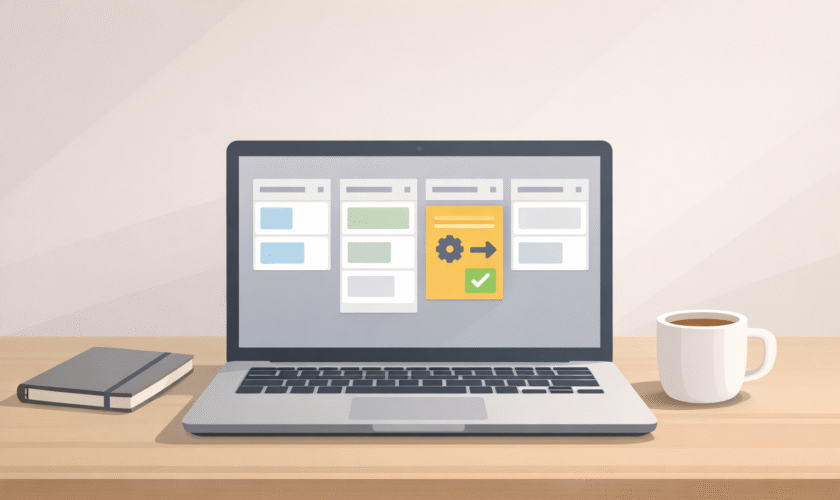
Trello has long been celebrated as one of the most versatile productivity tools available today, but few users fully appreciate Trello’s most underrated feature that can transform everyday workflows into calm, focused systems. With its intuitive kanban-style boards, lists, and cards, Trello helps individuals and teams visually organize tasks, projects, and deadlines. From solo freelancers managing multiple client projects to large teams coordinating complex workflows, Trello’s flexibility has made it a go-to platform for anyone seeking clarity in their work. Its simplicity masks a depth of functionality that many users are only beginning to explore.

Despite its effectiveness, many users struggle with digital clutter. Open tabs, overflowing inboxes, constant notifications, and scattered to-do lists can turn Trello boards into sources of stress rather than productivity. Instead of aiding focus, these tools can sometimes amplify the feeling of being overwhelmed. This is where the idea of a “calm workflow” comes in—a system designed not just to track tasks but to reduce cognitive load, limit distractions, and support mindful productivity.

One of the most powerful ways to achieve this is by leveraging Trello’s most underrated feature. While Trello offers a wide array of tools, certain features remain underutilized despite their potential to streamline workflows and foster calm, focused work. By highlighting these hidden gems, users can transform their boards from cluttered task lists into streamlined systems that encourage clarity, focus, and productivity without the chaos.

Why Focused Workflows Matter

In today’s digital world, productivity is not just about doing more; it’s about doing things effectively and mindfully. A focused workflow ensures that your attention is directed toward the tasks that matter most, while minimizing distractions and unnecessary cognitive load. Mindful work—taking deliberate, conscious steps in managing tasks—can significantly boost productivity while maintaining mental well-being. When your workflow is chaotic, you not only waste time searching for information but also experience heightened stress, decreased efficiency, and increased chances of burnout.

This is where the philosophy of digital minimalism becomes relevant. Digital minimalism encourages intentional use of technology: selecting tools that genuinely add value, eliminating digital clutter, and prioritizing meaningful work over constant digital noise. For professionals, students, or creators, applying digital minimalism in task management translates to choosing the right productivity apps, setting boundaries with notifications, and ensuring that every tool in your workflow serves a clear purpose.

Trello, in this context, becomes more than a task manager—it can become a tool for cultivating focus and calm. By applying structure, hierarchy, and intentional organization within Trello boards, you can create a workflow that supports mindful work habits. And while many users stick to basic card creation and checklist functions, exploring Trello’s most underrated feature allows for the next level of focus: a feature designed not just for efficiency, but for peace of mind.

Trello’s Most Underrated Feature

Feature Overview

Among Trello’s many capabilities, one feature consistently overlooked is Butler Automation. While Trello users often create cards, assign tasks, and track deadlines manually, Butler Automation allows for automating repetitive tasks, setting triggers, and creating rules that streamline workflows without constant manual input. With Butler, users can schedule recurring tasks, move cards automatically when completed, assign members to cards based on certain actions, or even generate summary reports—all without lifting a finger once set up.

Trello’s Most Underrated Feature

How It Helps Create Calm Workflows

Butler Automation supports calm workflows in several ways. First, it removes the mental overhead of repetitive tasks. For example, instead of manually moving completed cards to a “Done” list or sending reminders to team members, Butler can automate these actions. This eliminates small but frequent distractions that fragment attention and increase stress.

Second, Butler enables users to enforce consistency in their boards. Recurring tasks or project updates can be automatically handled, ensuring nothing slips through the cracks. This reduces anxiety about missed deadlines or forgotten steps, creating a more predictable and stable workflow.

Third, Butler allows for personalization tailored to your workflow. You can create automation that fits the rhythm of your day or the needs of your project. For instance, cards due soon can automatically be highlighted, or completed tasks can be archived to maintain a clean board. These subtle automations, while often unnoticed, drastically improve focus by minimizing cognitive clutter and allowing your attention to remain on meaningful work.

Why Most Users Overlook It

Despite its power, Butler Automation remains underrated because many users perceive Trello as just a “visual task manager” rather than a platform capable of intelligent automation. The setup may seem intimidating at first glance, and without guidance, users may assume it’s too complex or unnecessary.

Additionally, many tutorials focus on basic board organization and checklist creation, leaving advanced features like Butler underexplored. This makes it a hidden gem for anyone seeking to elevate their Trello usage beyond simple task tracking.

Step-by-Step Guide to Using the Feature

Setting It Up on Your Boards

Setting up Butler Automation is easier than many users expect. Begin by navigating to the Butler button at the top of your Trello board. From there, you can explore three main types of automation: Rules, Buttons, and Scheduled Commands.

  • Rules trigger actions based on card movement, due dates, or labels. For example, you could create a rule: “When a card is moved to the ‘Done’ list, mark it as complete and archive it after 2 days.”
  • Buttons allow one-click automation for repeated tasks. You might create a button labeled “Prepare Weekly Review” that automatically moves all completed tasks to a summary list and generates a report.
  • Scheduled Commands automate tasks at specific times or intervals. For instance, Butler can create a new card every Monday morning for your weekly planning session.

Tips for Customizing It for Your Workflow

To maximize Butler’s potential, start small and expand gradually. Focus on automating tasks that consume the most mental energy or repetitive steps that interrupt your workflow. Personalize rules to match your priorities—for example, color-coding tasks for urgency or assigning members automatically based on task type.

It’s also helpful to document your automations in a simple guide on your board. This ensures you and your team understand how each automation works, reducing confusion and enhancing workflow clarity.

Common Mistakes to Avoid

Many users overcomplicate their automations or try to automate every minor task. This can create unnecessary complexity and even slow down boards. Stick to automations that genuinely reduce cognitive load or repetitive work. Another common mistake is neglecting to review automated rules regularly. Needs change, and outdated rules can interfere with efficiency rather than support it.

Lastly, avoid over-reliance on automation—Trello should aid mindful work, not replace critical thinking or project oversight.

Integrating with a Mindful Workflow

Using Trello’s most underrated feature effectively doesn’t mean relying on it alone. To create a truly calm and mindful workflow, it’s essential to combine this feature with other Trello tools and techniques. Trello’s flexibility allows you to layer multiple functionalities together, creating a workflow that not only tracks tasks but also reduces cognitive load and supports intentional work.

One practical way to integrate this feature is by pairing Butler Automation with labels, checklists, and due dates. For example, you can create an automation rule where a card tagged with “High Priority” automatically moves to a dedicated “Focus” list every morning. At the same time, checklists within that card can track subtasks, and due dates can trigger reminders only when necessary. This reduces decision fatigue because the system handles routine management while your attention stays on meaningful tasks.

Time management and digital minimalism are also key considerations when integrating this feature. A mindful workflow doesn’t rely on constant app usage or endless notifications; instead, it structures your digital environment to prioritize what matters. By automating repetitive tasks and creating predictable routines, Trello allows you to reclaim mental space, focus on high-value activities, and avoid distractions. For instance, scheduling weekly review cards to appear automatically via Butler ensures you have a dedicated time to reflect on progress without checking every list or card manually.

Consider a real-world example: Jane, a freelance designer, struggled with multiple client projects, overflowing inboxes, and inconsistent task tracking. By leveraging Trello’s most underrated feature alongside color-coded labels, priority lists, and recurring checklists, she created a calm, productive board. Each day, her “Focus” list only displayed critical tasks, automated reminders prompted her to update completed work, and recurring cards handled routine activities like weekly invoicing. The result? Jane reduced stress, stayed on top of deadlines, and could focus on creativity rather than administrative chaos.

The key takeaway is that mindful workflows are not about eliminating tasks—they’re about reducing mental clutter and structuring digital tools to support focus. When used thoughtfully, Trello transforms from a simple task manager into a productivity ally that fosters calm and intentional work habits.

Benefits of Using Trello Mindfully

Leveraging Trello thoughtfully, particularly through its most underrated feature, provides tangible benefits that go beyond traditional productivity gains. One of the most significant advantages is reduced stress and FOMO (Fear of Missing Out). Many users experience anxiety when they feel behind on tasks or overwhelmed by notifications. By automating routine tasks, organizing priorities clearly, and maintaining a clean board, Trello minimizes this mental noise. You no longer need to worry about forgetting a step or missing a deadline—the system handles it quietly in the background, allowing you to focus on what truly matters.

Mindful use of Trello also improves focus and organization. When boards are thoughtfully structured with automated actions, clear labeling, and priority-driven lists, your attention is guided naturally toward high-value tasks. There’s less time wasted deciding what to do next, searching for forgotten items, or manually updating lists. Instead, your workflow becomes intuitive, with the tools you need presented exactly when and where you need them. For instance, Butler Automation can move completed tasks to an “Archive” list automatically, keeping your main boards uncluttered and visually calming.

Another major benefit is that mindful Trello usage supports a digital minimalism lifestyle. Digital minimalists aim to reduce unnecessary technology consumption while retaining essential tools that enhance work and life. By using Trello to automate repetitive tasks, prioritize meaningful work, and limit distractions, you practice intentionality in your digital environment. Trello becomes more than a task manager; it becomes a tool for managing attention and creating mental space. Over time, this fosters sustainable work habits, reduces burnout, and aligns your workflow with the principles of minimalism: clarity, purpose, and simplicity.

The combination of reduced stress, improved focus, and digital minimalism not only enhances productivity but also promotes well-being. Users report feeling less overwhelmed, more in control, and capable of approaching work with a calm, deliberate mindset. By integrating Trello thoughtfully and leveraging its most underrated feature, the platform evolves from a simple organizational tool into a strategic asset for mindful work.

Conclusion

Trello’s most underrated feature proves powerful precisely because it goes unnoticed by many users, yet has the potential to dramatically improve workflow efficiency and mental clarity. By automating repetitive tasks, organizing priorities, and integrating seamlessly with other Trello tools, this feature allows users to focus on meaningful work instead of administrative overhead. It’s not just about productivity—it’s about fostering a calmer, more intentional approach to digital work.

If you’ve ever felt overwhelmed by digital clutter or distracted by endless notifications, now is the perfect time to explore this hidden gem in Trello. By incorporating it into your boards, you can streamline workflows, reduce stress, and create an environment where focus and clarity thrive.

Try this Trello feature today and experience calm, focused workflows. You may find that it not only improves efficiency but also transforms your relationship with your digital workspace, making your day less stressful and more productive.

FAQs

Q: What is the most underrated Trello feature?
A: The most underrated Trello feature is Butler Automation. It allows users to automate repetitive tasks, create rules and triggers, and schedule recurring actions to streamline workflows and reduce cognitive load.

Q: How can Trello improve my workflow without clutter?
A: Trello improves workflow by using automation, labels, checklists, and due dates to organize tasks efficiently. Features like Butler reduce repetitive actions, maintain a clean board, and allow you to focus on meaningful work rather than managing administrative details.

Q: Can digital minimalists use Trello effectively?
A: Yes! Trello aligns well with digital minimalism by helping users prioritize essential tasks, automate routine actions, and maintain visually clean boards. Mindful use of Trello reduces distractions and supports intentional work habits.

Q: How do I set up Trello for mindful work?
A: Start by identifying repetitive tasks that can be automated using Butler Automation. Combine this with color-coded labels, priority lists, and recurring checklists. Structure boards to display only relevant tasks at a time and schedule periodic reviews to maintain clarity and calm.

read more
Tools We Use

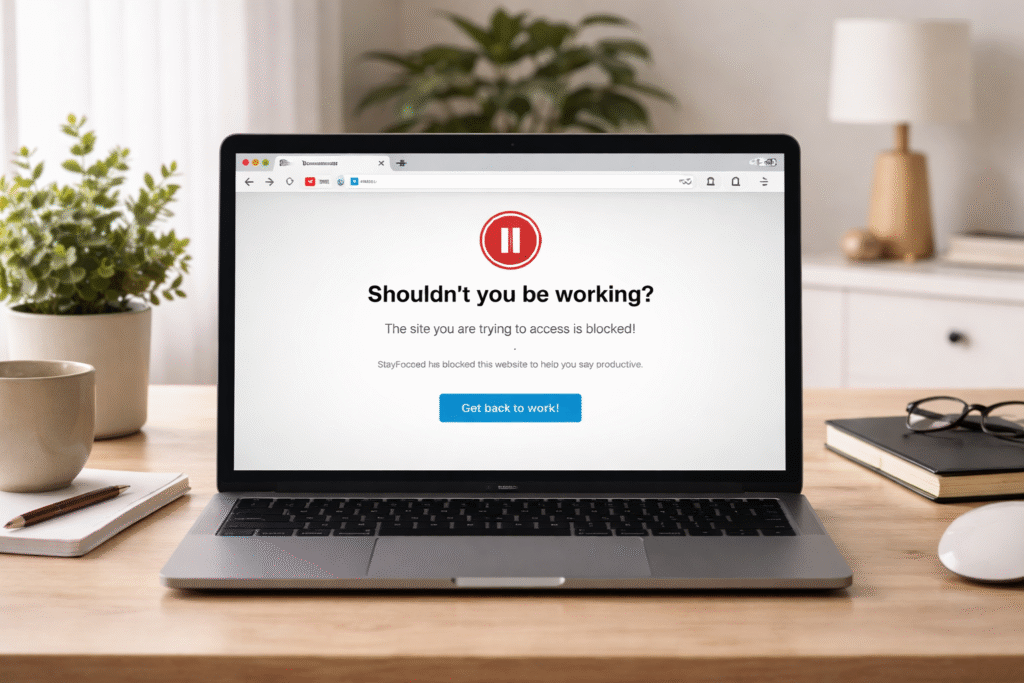
5 Browser Extensions That Help You Focus (and One to Avoid)

Staying focused online has quietly become one of the hardest productivity challenges of our time. You open your browser to finish one task, and before you know it, you’re juggling multiple tabs, notifications, and distractions you never planned for. Social media alerts, breaking news pop-ups, email pings, and recommendation algorithms are all competing for attention at the same time. This constant interruption is why many people struggle to maintain deep concentration while browsing.

What makes focus even harder today is that the browser itself has become our workplace, classroom, and entertainment hub all rolled into one. Whether you’re working remotely, studying, or running an online business, most of your productive hours now happen inside a browser window. Without the right boundaries, it’s easy to drift away from important tasks without realizing it.

This is where browser extensions that help you focus come in as a practical, low-effort solution. Instead of relying on willpower alone, these tools reshape your browsing environment to support better habits. From blocking distracting websites to nudging you back on track when attention slips, focus browser extensions work quietly in the background to protect your time and mental energy.

That said, not every extension labeled “productivity” actually improves focus. In fact, there’s one popular type of extension that does the opposite, and later in this article, you’ll see exactly which one to avoid and why.

Why Browser Extensions Can Improve Focus and Productivity

Your browser behavior plays a huge role in how well you concentrate. Endless tabs, constant switching between sites, and easy access to distractions fragment attention and reduce cognitive performance. Productivity browser extensions are designed to interrupt these patterns by limiting what you can access and when you can access it.

One reason browser extensions are so effective is their simplicity. Unlike full productivity apps that require setup, accounts, and constant interaction, lightweight extensions integrate directly into your existing workflow. They don’t demand attention; they guide it. This makes them some of the most effective tools to stay focused online, especially for people who want results without complexity.

There’s also an important difference between focus-enhancing tools and distraction tools disguised as productivity aids. True focus extensions reduce choices, silence noise, and support intentional browsing. Distraction tools, on the other hand, add more dashboards, notifications, and features that pull attention away from the actual work. Knowing this distinction helps you choose browser extensions for productivity that genuinely improve concentration instead of creating another layer of digital clutter.

What to Look for in Focus Browser Extensions

Not all focus browser extensions are created equal, so knowing what to look for matters. One of the most important features is effective distraction blocking. The best extensions to improve focus allow you to block specific websites, categories, or time-wasting behaviors during work or study sessions.

Customization and flexibility also matter. People work differently, so strong focus browser extensions let you set schedules, adjust block lists, and create exceptions when needed. Ease of use is another key factor. If an extension slows down your browser or feels complicated, it quickly becomes a distraction itself.

Compatibility is equally important. Whether you’re using Chrome, Firefox, Edge, or another browser, a good extension should work smoothly without breaking pages or causing performance issues. Finally, data privacy should never be overlooked. Since these tools monitor browsing behavior, it’s essential to choose extensions that are transparent about data usage and don’t collect unnecessary personal information.

When chosen wisely, browser extensions for productivity can turn your browser from a source of distraction into a powerful focus tool that supports better concentration every day.

5 Browser Extensions That Help You Focus

When used intentionally, browser extensions that help you focus can transform your daily workflow. Instead of fighting distractions with willpower, these tools quietly shape your browsing habits so concentration comes more naturally. Below are five of the best browser extensions for focus, followed by one popular option that often does more harm than good.

Extension #1: StayFocusd

(Distraction blocking browser extensions)

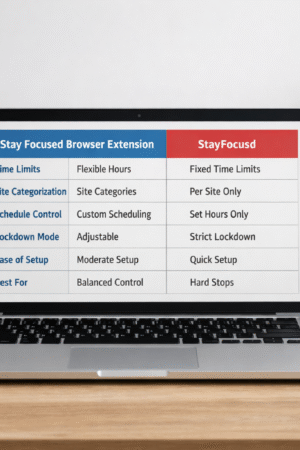
StayFocusd is one of the most well-known distraction blocking browser extensions, and for good reason. It limits the amount of time you can spend on specific websites each day, locking you out once your limit is reached.

Key focus-boosting features include site blocking, time limits, and a “nuclear option” that blocks distracting sites completely for a set period. It’s especially useful for work, study, and deep focus sessions where self-control tends to slip.

This extension is best for users who struggle with social media or news-site overuse and need firm boundaries to stay productive.

Extension #2: LeechBlock

(Browser extensions for productivity)

LeechBlock takes a structured approach to focus by letting users block distracting websites during specific hours or after a set amount of usage. It helps reduce distractions by enforcing rules rather than reminders.

Standout features include flexible schedules, multiple block sets, and detailed customization. On the downside, the interface may feel technical for beginners, and setup takes a little time.

LeechBlock is ideal for users who like control and want browser extensions for productivity that work silently once configured.

Extension #3: Forest

(Chrome extensions for focus, focus tools for remote work)

Forest uses a simple idea: when you focus, you grow a virtual tree. If you leave your task or visit blocked sites, the tree dies. This gamified approach makes it one of the most engaging Chrome extensions for focus.

It improves concentration by encouraging uninterrupted work sessions and rewarding consistency. Forest works best during timed work blocks, such as Pomodoro sessions, and is especially useful as one of the more motivating focus tools for remote work.

It’s best for visual learners and people who respond well to gentle accountability.

Extension #4: Momentum

(Study focus browser extensions)

Momentum replaces your new tab page with a clean dashboard featuring a daily focus, inspirational quote, and task list. Its unique strength is reducing visual clutter every time you open a new tab.

Unlike aggressive blockers, Momentum works by creating a calm environment rather than restricting access. Its strength lies in simplicity, though it may not be enough for users who need strict controls.

Momentum shines as one of the best study focus browser extensions for students and creatives who want fewer distractions without hard blocks.

Extension #5: Noisli

(Extensions that improve concentration)

Noisli provides customizable background sounds like rain, wind, or white noise to mask distractions. What makes it effective is how it supports mental focus rather than restricting behavior.

The focus-related benefits include improved concentration, reduced stress, and better immersion during work sessions. However, it doesn’t block websites, so it works best alongside other extensions.

Noisli is ideal for writers, students, and professionals who find silence distracting and want extensions that improve concentration through sound.

The One Browser Extension to Avoid (and Why)

Overly Gamified Productivity Dashboards

Some apps and extensions that hurt productivity look impressive but actually reduce focus. These extensions often promise “total productivity tracking” with points, badges, constant stats, and frequent notifications.

The common traps include excessive alerts, unnecessary gamification, and the illusion of productivity without real work getting done. Instead of focusing, users spend time checking progress bars and tweaking settings.

Over time, this approach fragments attention and disrupts workflow, making it harder to maintain deep focus. True browser extensions that help you focus should simplify your environment, not turn productivity into another distraction.

How to Combine Browser Extensions Without Hurting Productivity

Using the right tools to stay focused online can boost productivity, but installing too many browser extensions often backfires. Each extension consumes mental and system resources, adds visual clutter, and may introduce notifications that interrupt concentration. When multiple tools overlap in functionality, they compete for attention instead of supporting it.

A smarter approach is to combine extensions with clearly defined roles. For example, pair one distraction blocker (like StayFocusd or LeechBlock) with one environment enhancer (such as Noisli or Momentum). This balance helps you limit distractions while creating a calm, focused browsing space. Avoid stacking multiple blockers or trackers that do the same job.

Good extension hygiene is essential. Keep your toolbar clean, disable extensions you’re not actively using, and review your list every few weeks. If an extension requires frequent tweaking, sends unnecessary notifications, or slows down your browser, it’s a sign to remove or replace it. The goal is to simplify your workflow, not complicate it.

Browser Extensions vs Apps: Which Is Better for Focus?

Both browser extensions and standalone apps can support focus, but they serve different purposes. Browser-based tools are lightweight, fast, and directly integrated into your workflow. Because most distractions happen online, browser extensions that help you focus can block interruptions right where they occur, making them more effective than many digital distraction tools.

Apps make more sense when focus challenges extend beyond the browser. Time tracking, habit building, or device-wide blocking often require full applications. However, apps also demand more setup and can become distractions themselves if overused.

For minimal distractions, the ideal setup combines one or two browser extensions with simple system-level settings, such as notification limits. This approach keeps your focus strategy lean and sustainable.

Tips to Stay Focused While Browsing (Beyond Extensions)

Learning how to stay focused while browsing goes beyond installing tools. Simple browser habits make a big difference. Start by opening your browser with intention—know what you’re there to do before clicking anything else.

Tab management is crucial. Close unused tabs, group related ones, and avoid keeping “just in case” pages open. Scheduling focused browsing sessions also helps. Work in timed blocks with clear goals, then take intentional breaks instead of drifting online.

Your environment and mindset matter too. Reduce physical distractions, silence unnecessary notifications, and remind yourself that focus is a skill you practice daily. Extensions support the process, but habits sustain it.

Conclusion

When chosen carefully, browser extensions that help you focus can significantly improve how you work, study, and browse online. The key is intentional tool selection—using only what genuinely supports your goals.

Remember, extensions are aids, not solutions. Strong habits and mindful browsing are what truly sustain focus over time.

Frequently Asked Questions (FAQ)

What are the best browser extensions that help you focus?

Popular options include StayFocusd, LeechBlock, Forest, Momentum, and Noisli, each serving a different focus need.

Do focus browser extensions really work?

Yes, when used intentionally. They are most effective when paired with good browsing habits.

Are Chrome extensions for focus safe to use?

Most reputable ones are safe, but always review permissions and privacy policies.

Can distraction-blocking extensions improve productivity?

Absolutely. By limiting access to time-wasting sites, they protect attention and improve workflow.

How many productivity browser extensions should I use?

Usually one to three well-chosen extensions are enough. More than that often reduces focus.

read more
Tools We Use

The Hidden Productivity Features in Google Workspace You’ve Never Tried

Google Workspace

If you’re like most people, you probably think you know Google Workspace inside out. Gmail, Docs, Drive, Sheets… check, check, and check. But here’s the truth: the average user only scratches the surface, using maybe 20–30% of what Google Workspace can actually do.

That means there’s a whole suite of hidden productivity features that can seriously streamline your work, save you hours every week, and make you feel like a Google Workspace power user—even if your coworkers are still struggling with basic tasks.

Let’s dive into some of these lesser-known tools and tips that can transform how you work, all while keeping things simple and approachable.

Why Google Workspace Has More Productivity Power Than You Think

Google Workspace isn’t just a set of apps—it’s a fully integrated productivity ecosystem. But for many users, it’s easy to get stuck in the routine of sending emails, editing documents, and storing files. That’s why most people only tap into a fraction of its potential.

The reason is simple: Google Workspace is packed with hidden tools and features that don’t scream for your attention. Think of it like an iceberg—the part you see is just the tip, while the bulk of its power lies beneath the surface. These hidden tools are designed to help you cut workflow time, stay organized, and even collaborate more effectively with your team.

When you discover features like Smart Canvas, advanced Drive search operators, or Gmail’s integration with Tasks, the impact on your productivity is almost immediate. Suddenly, repetitive tasks that used to eat up hours are reduced to minutes. And the best part? You don’t need to be a tech wizard to use them. Once you start exploring these features, you’ll wonder how you ever managed without them.

The Most Overlooked Google Workspace Tools That Save Hours Weekly

Smart Canvas: The Future of Connected Workflows

If you’ve never used Smart Canvas, you’re missing out on one of Google Workspace’s most powerful productivity enhancers. Introduced as a way to connect different Google apps more seamlessly, Smart Canvas turns your documents, spreadsheets, and slides into interactive hubs where collaboration happens in real time.

One of its standout features is smart chips. These little gems allow you to insert interactive elements directly into your Docs. You can link to a colleague, a file, or even a calendar event. This means you don’t have to stop writing to search for a file or ping someone for clarification—the info is right there in your document.

Then there’s building blocks, which let you insert reusable content templates, tables, and checklists. Imagine creating a project plan once and reusing it across multiple teams without starting from scratch every time. Smart Canvas also supports meeting notes and task assignments directly within Docs. That means action items can be assigned and tracked without leaving your workflow—no more juggling separate apps or emails.

For teams, Smart Canvas isn’t just convenient—it’s transformative. It reduces friction, improves visibility, and keeps everyone on the same page, literally.

Google Tasks + Gmail Integration: A Hidden Power Duo

Most people treat Gmail as a simple email tool, but when you combine it with Google Tasks, it becomes a productivity powerhouse. With this integration, you can turn any email into a task with just a few clicks. That means no more scribbled notes or forgotten follow-ups. Every task lives in one place, synced across all your devices.

Here’s how it works: When you receive an email that requires action, click the “Add to Tasks” button. The email is automatically linked, so you can open it directly from your task list when it’s time to work on it. You can set due dates, reminders, and even subtasks. This turns Gmail into a centralized hub for both communication and action management.

The real magic happens when you start using Tasks across devices. Whether you’re on your phone, tablet, or desktop, your task list stays updated in real time. This makes it easy to check off items while commuting, waiting for a meeting, or even working remotely. It’s a simple setup, but once you get in the habit, it can save you hours every week.

Drive’s Advanced Search Operators You Never Use

Google Drive is more than just a cloud storage solution. Its real strength lies in its advanced search capabilities, which many users never explore. If you’ve ever spent ages scrolling through folders looking for a file, this feature alone can change your life.

Drive allows you to use filters, shortcuts, and boolean commands to locate files instantly. For example, you can search by file type (type:pdf), owner (owner:me), or date modified (before:2025-12-01). Combine these operators for even more precise results, like finding a PDF shared with you by a colleague last month.

Shortcuts make organizing files easier than ever. Instead of duplicating documents, create shortcuts to reference them across multiple folders. And don’t forget about the search bar’s hidden potential: typing natural language queries like “Files I shared last week” can pull up exactly what you need, thanks to Google’s AI-powered search algorithms.

Using these advanced operators not only saves time but also reduces stress. No more frantic searching before a meeting or project deadline. With just a few keystrokes, you can find any file in seconds.

Hidden Productivity Features Inside Google Docs, Sheets, and Slides

Google Workspace isn’t just a collection of apps—it’s a productivity powerhouse waiting to be fully discovered. While most users stick to the basics, there are dozens of hidden features across Docs, Sheets, and Slides that can save hours every week and make your work feel smoother, faster, and more efficient.

Let’s explore some of the most overlooked tools that can transform your daily workflow.

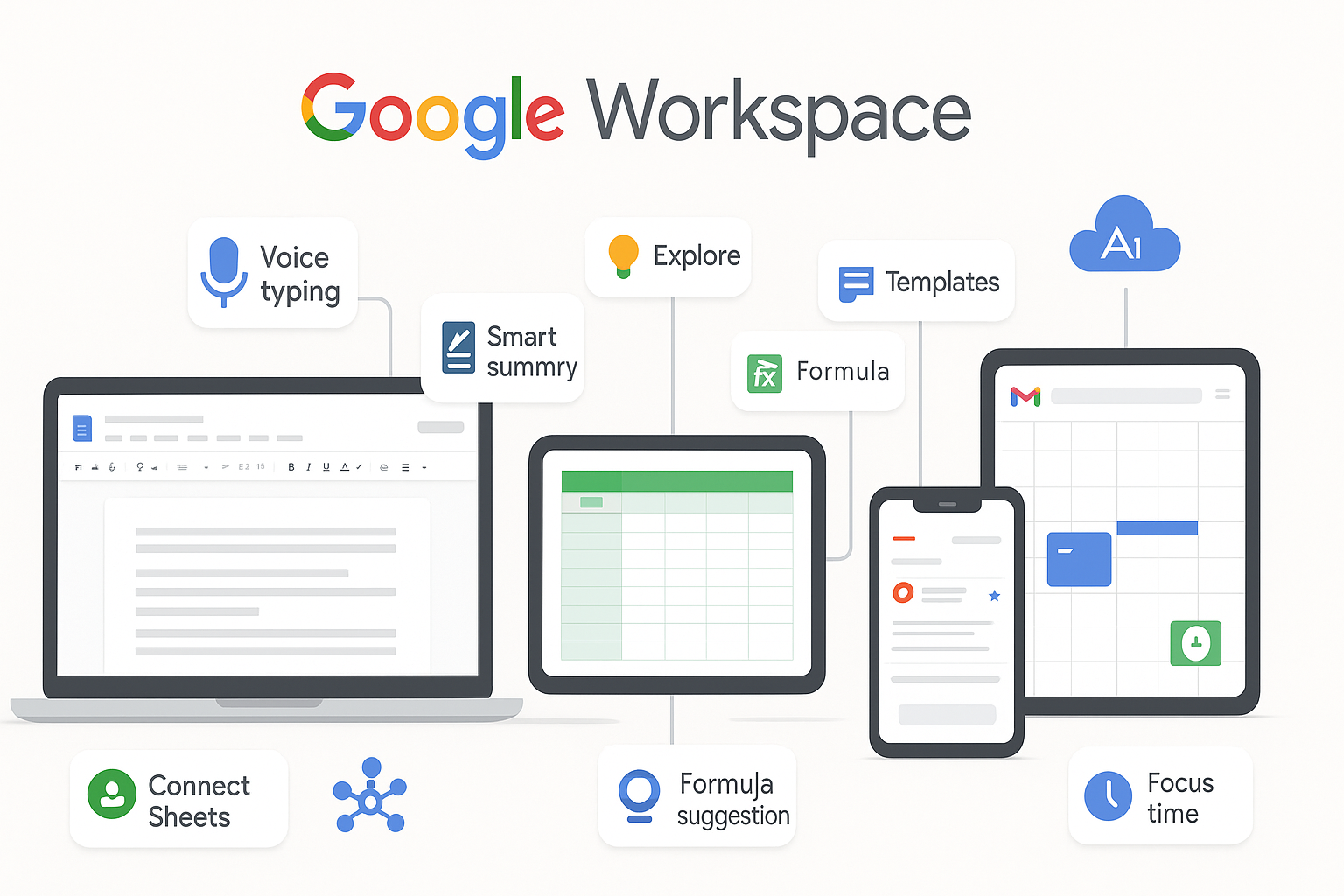
Google Docs: Voice Typing, Pageless Mode, and Smart Summary

Google Docs has evolved far beyond a simple word processor. One feature many users overlook is Voice Typing. Instead of typing line after line, you can dictate your thoughts directly into Docs. This is perfect for brainstorming, note-taking, or drafting reports—especially if your fingers need a break. Accuracy has improved dramatically, and even editing dictated text is quick and easy.

Then there’s Pageless Mode, a feature designed for collaborative editing. It removes the rigid page boundaries, giving you an infinite canvas. This is ideal for brainstorming sessions, long research documents, or collaborative reports where formatting shouldn’t slow you down.

Smart Summary is another game-changer. Using AI, Google Docs can generate summaries of long documents, helping you quickly review content, identify key points, or even prepare reports. Together, these tools speed up writing, editing, and reviewing documents without adding extra steps.

Google Sheets: Connected Sheets, Explore, and Formula Suggestions

Spreadsheets are often a productivity bottleneck, but Google Sheets hides some serious power under the surface. Connected Sheets lets you link live datasets from BigQuery directly into your spreadsheets, eliminating manual imports or copy-pasting. This is ideal for teams that rely on real-time data for reporting or analysis.

The Explore feature is like having a data analyst in your pocket. Just click the Explore button, and Google Sheets suggests charts, tables, and insights based on your data. You don’t need advanced formulas to visualize trends or uncover insights—it does the heavy lifting for you.

Finally, Formula Suggestions save time and reduce errors. As you type a formula, Sheets predicts the rest, helping both beginners and advanced users create complex calculations quickly. This is perfect for anyone who works with recurring reports or large datasets.

Google Slides: Auto-Layout, Quick Design, and Speaker Coach

Presentations don’t have to be tedious to create. Auto-Layout automatically adjusts your slide elements for perfect alignment, saving you the painstaking effort of manually resizing or moving text boxes and images.

Quick Design takes things a step further by generating professional slide layouts instantly. Input your content, and Google Slides suggests visually appealing designs. This is especially handy when you’re pressed for time or need a polished look without hiring a designer.

Speaker Coach is an underrated AI feature that helps presenters practice. It gives real-time feedback on pacing, filler words, and clarity, so you can rehearse like a pro before your big presentation.

Gmail and Calendar Productivity Hacks Most People Don’t Know Exist

Gmail: Templates, Schedule Send, and Nudges

Gmail is more than just an inbox—it’s a productivity hub. Templates allow you to create and reuse standard emails, which is perfect for repetitive messages like client follow-ups or internal updates.

Schedule Send is another hidden gem. Instead of sending emails immediately, you can choose the perfect time for delivery. This is great for reaching global teams or ensuring emails land at optimal hours.

Nudges are subtle reminders that bring important messages back to the top of your inbox. If you’ve ignored an email or need to follow up, Gmail nudges you at the right time, ensuring nothing slips through the cracks.

Google Calendar: Time Blocking, Appointment Schedules, and Focus Time

Google Calendar is more than a place to jot down meetings. Time Blocking lets you schedule dedicated work sessions, ensuring you focus on important tasks rather than reactive email or meetings.

Appointment Schedules make it easy for colleagues or clients to book time with you without endless back-and-forth emails. And Focus Time automatically silences notifications, creating distraction-free blocks for deep work. Together, these tools help you take control of your schedule and boost productivity.

Collaboration Features That Make Google Workspace a Team Productivity Machine

Real-Time Collaboration Tips

One of Google Workspace’s strongest advantages is collaboration. Version history allows teams to track every change, making it easy to revert edits or review progress. Comment assignments ensure feedback is actionable and clearly assigned, reducing confusion in group projects. And Suggesting Mode lets collaborators propose edits without overwriting the original content.

Using these features effectively keeps everyone aligned, prevents duplicated work, and improves accountability across teams.

Shared Drives for Organized Team Workflows

Shared Drives go beyond individual folders. They allow teams to store files in a centralized, structured way. Permissions can be customized for view, edit, or manage access, ensuring sensitive information is protected while still accessible to the right people. Proper folder structures and governance reduce chaos and make retrieving files effortless, especially for large teams.

Security and Automation Features That Make Work Faster and Safer

Drive Labels and Data Loss Prevention (DLP)

Many users don’t realize Google Workspace has built-in security features that also boost productivity. Drive Labels help categorize and organize files, while Data Loss Prevention (DLP) ensures sensitive information stays protected. These tools reduce mistakes, streamline compliance, and save time spent managing sensitive content manually.

Automation with Google Apps Script (No Coding Required)

Google Apps Script might sound intimidating, but it’s easier than you think. With prebuilt templates and add-ons, you can automate repetitive tasks like data entry, email alerts, and report generation—no coding experience needed. Automation not only saves time but also reduces errors, making workflows faster and more reliable.

How to Unlock Even More Features With Google Workspace Add-ons and Extensions

Google Workspace’s functionality can be extended even further with add-ons and browser extensions. There are both free and paid options that integrate with CRMs, project management tools, and AI platforms. For example, extensions can pull data from Salesforce directly into Sheets, or use AI assistants to summarize emails.

Exploring these tools gives you a significant productivity edge, allowing you to work seamlessly across apps and reduce repetitive tasks.

Final Thoughts: Google Workspace Features You Should Start Using Today

If you want a productivity boost, start with the features that have the biggest impact: Smart Canvas, Voice Typing, Formula Suggestions, Gmail Templates, Time Blocking, and Shared Drives. These tools are easy to enable and can save hours every week.

For beginners, focus on one app at a time—learn Google Docs features first, then Sheets, and finally Slides. Professionals can explore automation, add-ons, and advanced search operators to optimize workflows further.

The key takeaway? Google Workspace is a treasure trove of hidden productivity features. The more you explore, the more efficient and organized your work becomes. Start small, experiment, and gradually incorporate these tools into your daily routine—you’ll wonder how you ever worked without them.

Frequently Asked Questions (FAQs)

Q: What are the best productivity features in Google Workspace?
A: Voice Typing in Docs, Smart Summary, Connected Sheets, Formula Suggestions, Gmail Templates, Time Blocking, and Shared Drives are among the top hidden productivity features.

Q: How do I enable hidden Google Workspace tools?
A: Many features are available in the app settings or under experimental “Labs” options. Explore Docs, Sheets, Slides, Gmail, and Calendar menus to find advanced tools.

Q: Is Google Workspace good for productivity?
A: Absolutely. When used fully, Google Workspace saves time, improves collaboration, and helps teams manage projects efficiently.

Q: Are there advanced features only available on paid plans?
A: Yes. Features like DLP, Shared Drives with advanced permissions, Connected Sheets, and Smart Summary are often limited to Workspace Business or Enterprise plans.

Q: What is the most underrated Google Workspace tool?
A: Google Sheets’ Explore feature is highly underrated. It provides AI-driven insights, charts, and analysis suggestions without needing advanced formulas.

read more
Tools We Use

Our Honest 2025 Review: Is Notion Really the Best App for Mindful Remote Work?

Notion is one of the most popular productivity apps for remote workers, but is it truly the best tool for mindful work?

Remote work offers tremendous freedom, but it also introduces a constant struggle: how to manage information, collaborate effectively, and stay mindful when your workspace lives in the cloud. Notion promises to simplify everything—notes, tasks, docs, databases, and more—in one unified workspace.

But does it actually support mindful productivity, or does it risk becoming another source of digital overload?

In this review, we’ll explore whether Notion lives up to its reputation for remote teams who value focus, creativity, and intentional workflows. We’ll dig into its strengths, weaknesses, and real-world value based on data and examples.

What Is Notion?

Notion is a highly flexible workspace tool that combines document creation, project management, databases, wikis, and task tracking in one platform. Its appeal lies in its modular nature—you can build custom dashboards, link pages, embed databases, and use templates for almost any use case.

Remote team collaborating mindfully using Notion

Remote teams and individuals alike use it to create a central “second brain” for both personal productivity and collaborative knowledge management.

The Case for Mindful Remote Work

Mindful work is about more than just getting things done—it’s about working intentionally, minimizing distractions, and managing mental load. For remote workers, mindful productivity can be especially hard to achieve, as digital fragmentation (too many apps and tools) often leads to scattered attention and fragmented workflows.

Notion’s promise is ideal for mindful remote work: a single, customizable space where notes, tasks, and knowledge all live together. But whether it helps reduce cognitive overload depends largely on how thoughtfully it’s used.

Notion Features That Support Mindful Productivity

1. Unified Workspace & Templates

One of Notion’s biggest advantages is its ability to centralize everything: your to-dos, meeting notes, project plans, and reference materials can all sit in the same place. This reduces the need to switch between specialized tools and helps maintain mental clarity.

Notion offers a wide range of templates—from simple task lists to complex project trackers—which can be adapted to suit mindful work styles.

2. Knowledge Management and Collaboration

Because Notion supports real-time collaboration and relational databases, remote teams can maintain a living knowledge base. According to an IDC case study, the company Remote used Notion to cut down its reliance on other tools, reduce meeting frequency, and save over 400 hours of employee time in just two months.

3. Efficiency & Task Completion

Notion is reportedly improving productivity for many users: according to data from Notion Elevation, users report up to 87% higher task completion rates compared to more traditional tools. Its modular layout and custom dashboards help users organize workload in a way that’s both efficient and mindful.

4. Asynchronous Communication

For remote teams, Notion allows updates, documentation, and project tracking to happen asynchronously—reducing meeting fatigue and promoting deeper work. Many teams use Notion as their single source of truth, enabling quiet collaboration without constant notifications.

Real-World Examples

Netflix: A case study shows Netflix used Notion templates to improve remote workflows. By centralizing task organization and communication in Notion, they increased clarity, lowered redundant email traffic, and boosted employee engagement.

Remote (company): As mentioned, Remote leveraged Notion to cut down on standing meetings, reduce licensing costs for other collaboration tools, and reclaim productivity time.

Everyday Remote Worker: On Reddit, one remote consultant shared how Notion serves as his central hub across time zones—everything from client portals to project trackers lives in Notion, reducing context switching.

Strengths of Notion for Mindful Remote Work

StrengthWhy It Matters for Mindfulness
Highly CustomizableYou build a workspace that suits your mental flow rather than adapting your flow to the app.
All-in-One PlatformReduces app fragmentation and limits context switching.
Template & Database PowerEnables structured thinking and organization without losing flexibility.
Asynchronous CollaborationSupports focus-driven work by minimizing meeting overload.
Scalable for TeamsWorks for solo users or large distributed teams.

Limitations and Pitfalls to Watch Out For

  1. Steep Learning Curve
    Notion’s flexibility comes at a cost: new users can feel overwhelmed by its options. Building an effective, mindful workspace on Notion often requires time and experimentation before it truly “clicks.”
  2. Risk of Over-Customization
    If you don’t plan carefully, your Notion workspace can become a chaotic maze of pages and databases—defeating the purpose of simplification. Some users spend more time designing their setup than doing actual work.
  3. Mobile Experience
    Notion’s mobile app is useful but not always ideal for deep work. Navigating large databases or complex dashboards on small screens can be less intuitive, which may interrupt mindful workflows.
  4. Database Performance
    With very large databases or complex relational setups, Notion can lag. Several users report performance slowdown when working with multiple nested databases.
  5. Not Always the Best for Task Management
    Some users prefer to use Notion for documentation or project planning, and a separate app (like Todoist or a dedicated task manager) for day-to-day tasks.

Tips for Setting Up Notion Mindfully

Getting Notion to support mindful remote work requires intention. Many users jump in, creating pages, databases, and templates without a strategy—leading to overwhelm.

Here’s how to build a workspace that fosters focus:

1. Start Simple

Begin with a single-purpose setup. For example, start with a task management page or a daily planner. Resist the temptation to add multiple dashboards, databases, or extensive templates until you master the basics. Minimalism encourages mindfulness by reducing distractions and mental clutter.

2. Use Templates Wisely

Notion offers hundreds of templates, from weekly planners to project trackers. Choose a template aligned with your workflow and tweak it gradually. For instance, a weekly review template can help you reflect on accomplishments and plan tasks, which encourages deliberate, intentional work rather than reactive multitasking.

3. Prioritize a Single Dashboard

Create a central dashboard linking all critical pages, projects, and reference materials. By having a “home base,” you reduce context switching, which research shows can cost up to 40% of your productivity.

4. Implement a Minimalist Page Structure

Avoid nesting pages too deeply. Deep hierarchies can make navigation confusing and mental processing slower. Keep the structure shallow, with broad categories and clear labels. A clean structure improves both accessibility and mindfulness.

Here’s a quick look at how Notion stacks up against popular alternatives for mindful remote work:

AppStrengthsWeaknessesMindful Productivity Fit
NotionAll-in-one, customizable, templates, knowledge managementSteep learning curve, can be overwhelmingExcellent if setup mindfully
TrelloVisual Kanban boards, simpleLimited documentation, fewer customization optionsGood for task-focused workflows
TodoistSimple task management, easy to useNo relational database, less flexibleGreat for daily task focus
ClickUpHighly structured, feature-richComplex interface, steep learning curveUseful for large teams, may overwhelm individuals

Key takeaway: Notion’s flexibility makes it the best option for a mindful setup if you are willing to invest time in intentional configuration.

Real-Life Remote Work Scenarios

Example 1: Freelance Consultant

A freelance consultant uses Notion as a central hub for clients, proposals, and content ideas. By dedicating one page per client and using databases for proposals, they reduced email clutter by 50% and decreased task-switching by half, allowing more uninterrupted focus for creative work.

Example 2: Remote Team Lead

A small team of remote developers switched from Slack and Google Docs to Notion. By centralizing documentation and project tracking, they reduced meeting frequency by 30%, improved project clarity, and maintained better asynchronous communication.

Example 3: Solo Creator

A content creator organizes blog ideas, scripts, and research in Notion. The visual kanban board and weekly review template help them focus on one content piece at a time, reducing overwhelm and boosting creative output.

Tips to Avoid Notion Overload

  1. Regular Reviews: Set weekly review sessions to clean outdated pages and reorganize databases.
  2. Limit Notifications: Only enable essential alerts; turn off everything else to maintain focus.
  3. Use Minimal Pages: Avoid creating unnecessary subpages—less is more for mindful productivity.
  4. Adopt a Consistent Naming System: Clear labels reduce time searching and mental clutter.

Verdict: Is Notion the Best App for Mindful Remote Work?

Strengths:

  • Flexible, all-in-one workspace
  • Supports knowledge management and documentation
  • Encourages intentional workflows with templates and dashboards
  • Promotes asynchronous collaboration

Weaknesses:

  • Requires discipline and careful setup
  • Steep learning curve for new users
  • Mobile experience can be limiting for complex workflows

Bottom line: Notion can be the best app for mindful remote work—but only if you approach it intentionally. It’s not a plug-and-play solution. For users who value focus, organization, and centralized workflows, the investment in learning Notion pays off with increased productivity, clarity, and reduced digital chaos.

Final Thoughts

After looking at data, real-world examples, and user experiences, it’s clear that Notion has serious potential for mindful remote work—but it’s not a magic bullet. When configured thoughtfully, it can reduce fragmentation, support deep thinking, and enhance productivity without forcing you into rigid workflows.

However, in the wrong hands—or without a disciplined setup—Notion risks becoming just another source of digital clutter.

If you’re moving toward a more mindful, intentional remote workflow, Notion deserves a serious look. Start small, build with purpose, and re-evaluate your workspace periodically. With the right setup, Notion can help you work not just harder, but smarter—and calmer.

FAQs

  1. Is Notion suitable for individual remote workers?
    Yes, Notion is highly customizable and works well for solo professionals who want a central hub for tasks, notes, and projects.
  2. Can Notion replace other productivity apps?
    It can replace many apps like task managers, note-taking apps, and document storage, but for highly specialized tools (like advanced project management or time tracking), integration may still be needed.
  3. Does Notion improve focus and mindful work?
    When configured intentionally with dashboards, templates, and minimal notifications, Notion supports focused and mindful workflows.
  4. Is Notion difficult to learn?
    Beginners may experience a learning curve due to its flexibility. Starting with simple templates and a clean structure helps reduce overwhelm.
  5. Is Notion free to use?
    Notion offers a free plan with core features, while premium plans unlock advanced features like larger file uploads and team collaboration.

📚 Notion Templates for Remote Work
📚 IDC Case Study: Remote & Notion
📚 SuccessMag: Netflix Case Study on Notion
📚 Reddit: Notion User Experiences
📚 Cal Newport – Deep Work: Rules for Focused Success

read more
Tools We Use

The Only 3 Productivity Apps That Actually Make You Work Smarter (Not Harder)

3 Productivity Apps That Actually Make You Work Smarter

Most people download productivity apps hoping they’ll magically transform their work life—only to realize a few weeks later that nothing has changed. They’re still overwhelmed. They’re still procrastinating. They’re still juggling tasks with no real structure. The truth is simple: most productivity apps are either too complex, too distracting, or too generic to make a real difference.

But a few tools actually do what they promise.

In this article, we’ll explore the only three productivity apps that genuinely help you work smarter—not harder. These apps aren’t about doing more. They’re about doing the right things, in a simpler, faster, and more intentional way.

Before we dive into the top three, let’s understand why most apps fail and what separates smart productivity tools from the noise.

Table of Contents

Why Most Productivity Apps Fail — and What Makes These Three Different

Most people don’t need more tools.
They need better systems.

But the average productivity app today is bloated with features, loaded with notifications, and stuffed with tasks you’ll never actually use. It’s easy to get lost in the dashboards instead of getting real work done.

So, why do most productivity tools fail? And why do the three apps in this article stand out?

Let’s break it down.

The Problem With Traditional Productivity Tools

Traditional productivity apps struggle for three main reasons:

1. They Overwhelm Instead of Simplifying

Many apps are built with “power users” in mind—people who want tags, boards, matrices, filters, subtasks, charts, workflows, and automations for every single thing. But the average user wants the opposite: clarity, speed, and ease.

When a tool makes you feel like you need a tutorial before you even create one task, it’s already failing.

2. They Focus on Tasks, Not Outcomes

A lot of apps turn into “digital dumping grounds” for tasks. You keep adding items, but you never feel like you’re accomplishing anything meaningful. You’re busy, but not productive.

Smart productivity apps focus on results, not just lists.

3. They Become a Distraction

Constant notifications, reminders, badges, and pop-ups do the opposite of helping you stay focused. Some apps become yet another thing you check compulsively—like social media.

The apps we’ll highlight later avoid this trap entirely by staying clean, quiet, and purposeful.

What “Working Smarter” Really Means in 2025

Working smarter does not mean multitasking, doing more work, or squeezing every minute of your day.
Instead, working smarter means:

  • Focusing deeply on what matters most
  • Automating repetitive tasks
  • Reducing mental clutter
  • Using simple systems that fit naturally into your workflow
  • Saving time, not spending more time managing your time

The right productivity apps support these principles without overwhelming you.

Now let’s get into the real deal—the three tools that actually make your day smoother, clearer, and more productive.

The Only 3 Productivity Apps That Truly Boost Efficiency

These three apps made the list because they meet four critical criteria:

3 Productivity Apps That Actually Make You Work Smarter
  • They simplify, not complicate
  • They reduce mental load
  • They save real time and energy
  • They work for almost any type of user—students, professionals, entrepreneurs, or teams

Let’s break them down one by one.

App #1 – Notion: The Ultimate Tool for Focus and Flow

Notion has become incredibly popular in recent years, and for good reason. It’s the kind of app that adapts to your brain—not the other way around. Whether you want to manage your tasks, journal your ideas, track projects, plan content, study, or collaborate, Notion does it in a clean, flexible, and minimalist way.

Notion isn’t just a productivity tool—it’s a thinking environment.

Why Notion Stands Out

Notion allows you to build your own workflow using simple blocks, pages, templates, and databases. Instead of forcing you into a rigid structure, it lets you create systems that match your personal work style.

Most people stick to 2-4 main pages, such as:

  • A daily planner
  • A weekly dashboard
  • A project tracker
  • A knowledge bank

This simplicity is why Notion works so well: you get everything in one place without the clutter.

Key Features That Make It Stand Out

  • Modular page building – Create pages that work exactly how you want.
  • Databases for tasks and projects – Keep track of to-dos, deadlines, goals, and habits.
  • Templates for any workflow – From personal planning to team collaboration.
  • Beautiful, clean interface – No visual noise or confusing dashboards.
  • Cross-platform syncing – Access your workspace from laptop, tablet, or phone.

In short, Notion turns your digital workspace into a smart command center.

Best Use Cases for Maximum Productivity

Notion is perfect for:

  • Students who want to organize notes and assignments
  • Entrepreneurs who manage projects and ideas
  • Remote workers who need an all-in-one planning tool
  • Content creators who want a place for scripts, outlines, and calendars
  • Teams that need shared pages, wikis, and workflows

If you want to work smarter by centralizing everything—including ideas, tasks, and plans—Notion is your best friend.

App #2 – Todoist: Simplifying Tasks and Workflow

Todoist is arguably the most elegant task manager ever built. It’s simple, distraction-free, and structured in a way that helps you stay consistent. No complicated dashboards. No overwhelming features. Just a clean list, smart filters, and a system that helps you get things done.

If Notion is your workspace, Todoist is your daily driver.

Why Todoist Works When Others Don’t

Todoist uses natural language input—meaning you can type:

  • “Call James tomorrow at 10am”
  • “Submit proposal next Friday”
  • “Pay rent every month on the 28th”

…and Todoist automatically handles the date, reminder, and schedule.

This is why it’s perfect for reducing mental load: you simply write what you need to do, and the app organizes the rest.

Features That Improve Your Daily Routine

  • Smart scheduling – Uses AI suggestions to pick the best due dates.
  • Labels and filters – Organize tasks without overthinking it.
  • Subtasks and sections – Break large tasks into small, manageable steps.
  • Priority levels – Highlights what truly matters each day.
  • Karma system – A fun way to track progress and build consistency.

Todoist is not fancy—but it’s incredibly effective.

Who This App Works Best For

  • Busy professionals
  • People with chaotic schedules
  • Students juggling multiple classes
  • Freelancers managing clients and deadlines
  • Anyone who wants a simple-tasks-in, simple-results-out workflow

Todoist is the app for people who want clarity, not complexity.

App #3 – Zapier: Automating Repetitive Work

Zapier is the silent productivity powerhouse most people have heard of but never fully use. Yet, it is the #1 automation tool that eliminates repetitive, boring tasks that drain your time every day—things like copying data from one app to another, sorting emails, updating spreadsheets, or sending notifications.

Zapier connects over 7,000 apps, from Gmail and Slack to Notion, Airtable, Google Sheets, HubSpot, Stripe, WordPress, and more. It’s like having a personal digital assistant running 24/7 in the background.

Why Zapier Is a Game Changer

Zapier works through simple “automation recipes” called Zaps.
A Zap has two main parts:

  • Trigger: “When this happens…”
  • Action: “…do this automatically.”

For example:

  • When someone fills out a form → add the details to Google Sheets
  • When a payment comes in → send a receipt + email notification
  • When a task is marked complete → update the project board
  • When a new file is uploaded → save it to a specific folder

These tiny automations save hours every week.
Instead of doing repetitive computer tasks manually, Zapier handles everything instantly.

Automation is one of the most powerful forms of “working smarter.”
It frees your brain from routine work and gives you space for what matters.

Unique Automations That Save You Hours

Here are some real examples of how Zapier removes stress and boosts efficiency:

1. Email Automation
  • Sort messages by category or client
  • Auto-forward messages to the correct department
  • Save email attachments to cloud storage
  • Turn important emails into tasks instantly
2. Workflow Automation
  • Sync tasks between apps like Notion, Trello, and Todoist
  • Update spreadsheets without touching Excel
  • Automate weekly reminders and reports
3. Business Automation
  • Add new leads to your CRM
  • Send follow-up emails automatically
  • Update your marketing tools in real time
4. Personal Productivity Automation
  • Log habits into apps
  • Save articles you want to read later
  • Track your goals without manual effort

Once you set it, you forget it—Zapier runs your workflow for you.

Real Examples of Smarter Work Using This App

Imagine you’re a freelancer, student, or business owner.

Here are examples of “working smarter” instead of harder:

  • Students automatically organize class materials into folders
  • Creators have new video ideas synced across devices
  • Teams get instant alerts when tasks are updated
  • Professionals save every attachment from clients into their cloud drive
  • Entrepreneurs automate invoice creation

Every tiny automation saves a few seconds… which adds up to hours every week.

How to Choose the Right Productivity App for Your Work Style

All three apps—Notion, Todoist, and Zapier—are powerful, but your workflow determines which one creates the biggest impact.

3 Productivity Apps That Actually Make You Work Smarter

To avoid overwhelm and maximize efficiency, here’s how to choose the right tool for your needs.

Identify Your Productivity Weak Points

Ask yourself:

  • Do I struggle with planning and structure?
  • Do I struggle with managing daily tasks?
  • Do I struggle with repetitive digital work?
  • Do I struggle with tracking goals and ideas?
  • Do I struggle with switching between apps constantly?

Once you pinpoint the problem, the solution becomes obvious:

  • If you lack structure → choose Notion
  • If you lack task clarity → choose Todoist
  • If you waste time repeating tasks → choose Zapier

Picking the right tool is the first major step toward working smarter.

Match Features With Your Daily Workflow

Different workflows require different levels of structure:

1. Structured Workers

You prefer order, clean layouts, and clear lists.
Notion + Todoist is your best combo.

2. Creative Thinkers

You prefer flexible spaces, notes, and visual thinking.
Notion is your home base.

3. Busy Professionals

You deal with meetings, deadlines, and constant communication.
Todoist keeps your head above water.

4. Entrepreneurs and Small Teams

You want everything working automatically in the background.
Zapier saves the day.

5. Students

You need a system for notes, assignments, deadlines, and revision.
Notion + Todoist gives you perfect balance.

By choosing the right app based on your mindset and job type, you eliminate friction and build a productivity system that works naturally.

Final Thoughts — Smarter Work Starts With the Right Tools

The productivity world is crowded. New apps launch every month promising miracles. But at the end of the day, only a few tools genuinely help you work smarter—by simplifying your life, not complicating it.

Let’s recap the top three:

1. Notion

Your all-in-one digital workspace
Best for planning, knowledge management, projects, and creative workflows.

2. Todoist

Your task execution powerhouse
Best for everyday tasks, routines, and clear daily action.

3. Zapier

Your automation engine
Best for eliminating repetitive work and freeing up your time.

These three tools cover the full productivity spectrum:

  • Thinking
  • Planning
  • Executing
  • Automating

Working smarter doesn’t require doing more.
It requires doing less, but doing it better.

With the right apps supporting you, your workflow becomes calmer, smoother, and more effective—not because you’re working harder, but because you’ve built a system that carries the load for you.

FAQs

1. What are the best productivity apps to help me work smarter, not harder?

The best productivity apps that help you work smarter—not harder—are Notion for planning and organization, Todoist for daily task management, and Zapier for automating repetitive work. These three tools cover planning, execution, and automation.

2. Why do most productivity apps not actually improve my workflow?

Most productivity apps fail because they are too complex, overloaded with features, or turn into digital clutter. The right apps should reduce mental load, simplify your workflow, and work quietly in the background.

3. Which productivity app is best for students?

Students benefit the most from Notion for lecture notes, assignments, revision schedules, and project planning. Pairing Notion with Todoist creates a complete system for schoolwork.

4. Which productivity app is best for entrepreneurs and remote workers?

Entrepreneurs and remote workers get the most value from Zapier, because it automates repetitive tasks such as sending emails, updating spreadsheets, syncing apps, notifying clients, and organizing data.

5. Can I use these productivity apps together?

Yes! Notion, Todoist, and Zapier work extremely well together. You can plan in Notion, execute tasks in Todoist, and automate everything through Zapier. Many professionals use all three to create a seamless workflow.

read more
Tools We Use

5 Minimalist Tools Every Remote Worker Should Try for Calm Productivity

You open your laptop and your brain instantly feels full — emails, tabs, chats, and alerts. You try to focus, but a Slack ping cuts through your thoughts. You glance at your to-do list, and it’s longer than yesterday. You tell yourself, “Maybe I just need another productivity app.”

It happens to almost everyone.

The irony is, many of us working remotely are drowning not in work, but in tools. Each app promises to “streamline your workflow,” yet every new tab adds another layer of noise. The result? You feel scattered, anxious, and mentally fatigued — the opposite of productive.

That’s why the rise of minimalist digital tools has become a quiet revolution among remote workers. These tools strip away the unnecessary and bring you back to what matters most: deep, calm focus.

According to a Slack survey of over 18,000 remote employees, 68% said they experience “tool fatigue,” and 43% said switching between apps is their biggest productivity killer. The solution isn’t more tools — it’s fewer, better ones.

Let’s look at 5 minimalist tools every remote worker should try in order to reclaim clarity, focus, and calm productivity.

1. WorkFlowy — The Outliner for a Clearer Mind

If your digital workspace feels like a junk drawer, WorkFlowy is the minimalist’s answer. It’s a simple, text-based outliner that replaces endless documents, sticky notes, and scattered thoughts with a single, expandable list.

🧩 WorkFlowy gives your brain one place to think.

You can create nested lists for projects, ideas, notes, and goals. And, you can achieve this all in one scrolling document. It’s not fancy, but that’s the point. The lack of visual clutter helps your brain relax.

Calm Productivity Tip:
Start each day with two bullets:

  • Today: add 3 top priorities.
  • This Week: everything else.
    At the end of the day, mark the 3 as complete and collapse the rest.

Why It Works:
Your brain doesn’t need to remember where things are — just open WorkFlowy and keep moving down the list. The minimalist layout quietly reinforces focus.

🟢Try it: WorkFlowy.com

2. Todoist — The To-Do List That Stays Out of Your Way

Todoist has become a staple in the remote work toolkit, but few realize how minimalist it can be when used intentionally.

It’s built around simplicity — no complex workflows, no endless tabs. You can type tasks in plain English (“Finish report Monday 10am”), assign priorities, and view only what matters today.

Calm Productivity Tip:
Use just two lists:

  • “Inbox” — where all tasks go.
  • “Today” — where only 3–5 tasks live.

Each morning, move the most important tasks into “Today.” At day’s end, archive what’s done and leave everything else in “Inbox.”

Why It Works:
Most to-do apps overwhelm you with categories, labels, and boards. Todoist works because it’s frictionless. It mirrors a minimalist mindset — do less, but do it better.

🟢 Try it: Todoist.com

3. Freedom — The App That Blocks Distraction Before It Starts

If focus is a muscle, distractions are junk food. And Freedom helps you diet.

Freedom blocks websites, apps, or even your entire internet connection during deep work sessions. It’s used by writers, researchers, and remote teams who value calm over chaos.

A University of California Irvine study showed that it takes the average worker 23 minutes to regain focus after a single interruption. Multiply that by the number of notifications you get per day — and you’ll see why your brain feels fried by 3 p.m.

Calm Productivity Tip:
Schedule two 90-minute “Focus Blocks” daily. During these blocks:

  • Turn on Freedom.
  • Silence all chat notifications.
  • Keep only one browser tab open.

Why It Works:
You’re not fighting willpower — you’re eliminating temptation. Freedom gives you a mental boundary that mimics a quiet office.

🟢 Try it: Freedom.to

4. Toggl Track — Awareness Over Micromanagement

You can’t improve what you don’t measure. Toggl Track is a lightweight time tracker that helps you see how your day actually unfolds — without making you feel like you’re under surveillance.

Click “Start” when you begin a task, “Stop” when you finish, and you’ll get visual data on where your time really goes.

Calm Productivity Tip:
At week’s end, review your Toggl data. Identify:

  • Which tasks energized you.
  • Which drained you.
  • Where you lost focus time.

Adjust your next week’s plan accordingly.

Why It Works:
Instead of obsessing over every minute, you’re simply building awareness. Toggl replaces guilt with insight — the heart of calm productivity.

🟢 Try it: Toggl.com/track

5. Notion — Your Minimalist Digital Workspace

Yes, Notion is powerful — maybe too powerful for some. But when used with a minimalist lens, it can replace five different apps (notes, docs, wiki, tasks, and archives) in one tidy space.

The key is restraint. Create only what you need: a few clean pages, nothing more.

🧠 “Your tools should reduce friction, not add complexity.” — Remote Minimalist Blog

5 Minimalist Tools Every Remote Worker Should Try

Minimalist Setup:

  • Page 1: Tasks (linked to your weekly goals)
  • Page 2: Knowledge Base (quick notes and templates)
  • Page 3: Archive (completed items)

The Asana Anatomy of Global Work Index found that remote workers switch between 10+ apps over 25 times per day. Notion consolidates your work into one calm environment.

Calm Productivity Tip:
Resist the temptation to overdesign your workspace. Start simple. Let the structure grow organically around how you think — not how templates tell you to.

🟢 Try it: Notion.so

Why Minimalism Works for Remote Productivity

Minimalism isn’t about deprivation — it’s about reduction with intention. The fewer tools you use, the fewer decisions your brain makes about how to work, leaving more mental energy for actual work.

A Deloitte study revealed that 59% of employees feel overwhelmed by workplace technology, while 45% say digital complexity directly harms their performance.

When you simplify your digital ecosystem:

  • You reduce decision fatigue.
  • You minimize context switching.
  • You restore mental clarity.

Remote workers thrive when their tools disappear into the background — when the act of working feels like flow, not friction.

Implementation Checklist

StepActionGoal
1Choose 1 note tool (WorkFlowy)Capture ideas simply
2Choose 1 task tool (Todoist)Prioritize effectively
3Install FreedomBlock noise
4Track time with TogglBuild awareness
5Simplify Notion workspaceCentralize focus

At week’s end:
Review your Toggl data. Notice where your attention went. Drop one tool that adds noise. Keep the ones that make you breathe easier.

The Future of Calm Productivity

In 2025, productivity isn’t about hustle — it’s about harmony. With remote work here to stay, workers are redefining success not as “doing more,” but as “doing well.”

Calm productivity is a movement — one where simplicity, mindfulness, and mental health replace app overload and burnout.

Final Thought

You don’t need 20 productivity apps to be effective. You just need a few that align with how you think, work, and rest. The calmest workers aren’t those doing less — they’re those doing what matters without noise.

So, start small. Simplify your tools, reclaim your attention, and let minimalism guide you to your most focused, peaceful workday yet.

🧠 FAQs

1. What makes a productivity tool “minimalist”?

A minimalist tool focuses on core functionality — no clutter, no overwhelm. It reduces decision fatigue and mental noise while encouraging deep work.

2. How many tools should I ideally use as a remote worker?

Aim for 3–5 essential tools that cover notes, tasks, focus, and communication. More than that often leads to tool fatigue and context switching.

3. I already use too many tools. How can I simplify?

Start by identifying overlaps. For example, if both Notion and Todoist track tasks, keep one. Audit your digital setup monthly and drop one redundant app each time.

4. Are minimalist tools only for freelancers or creatives?

No. Minimalist tools benefit anyone working remotely — from developers to marketers — because they help structure focus and reduce burnout.

5. What’s one simple habit to start calm productivity?

Set two 90-minute focus sessions daily (using Freedom or Airplane mode) and commit to completing just three meaningful tasks per day.

read more